For agencies
QR Code Generator for Agencies: Client Workspaces & Dynamic Links
Run client QR codes and short links from one KeptLink account: separate client workspaces, branded domains, team roles, and paid codes that keep redirecting.
Updated
In short
KeptLink gives agencies a separate workspace for each client, branded custom domains and four team roles. Business includes 25 workspaces, 5,000 dynamic links, 10 custom domains and 10 seats for $69 a month. Codes made on a paid plan keep redirecting after you cancel, unless they are blocked for safety.
Agencies sell print work that outlives the contract. A menu, a yard sign or a carton can stay in use for years. The QR code on it has to keep working after the project ends. This page shows how KeptLink keeps each client’s work apart, and what happens to printed codes when a retainer stops.
Why agencies need dedicated QR code management
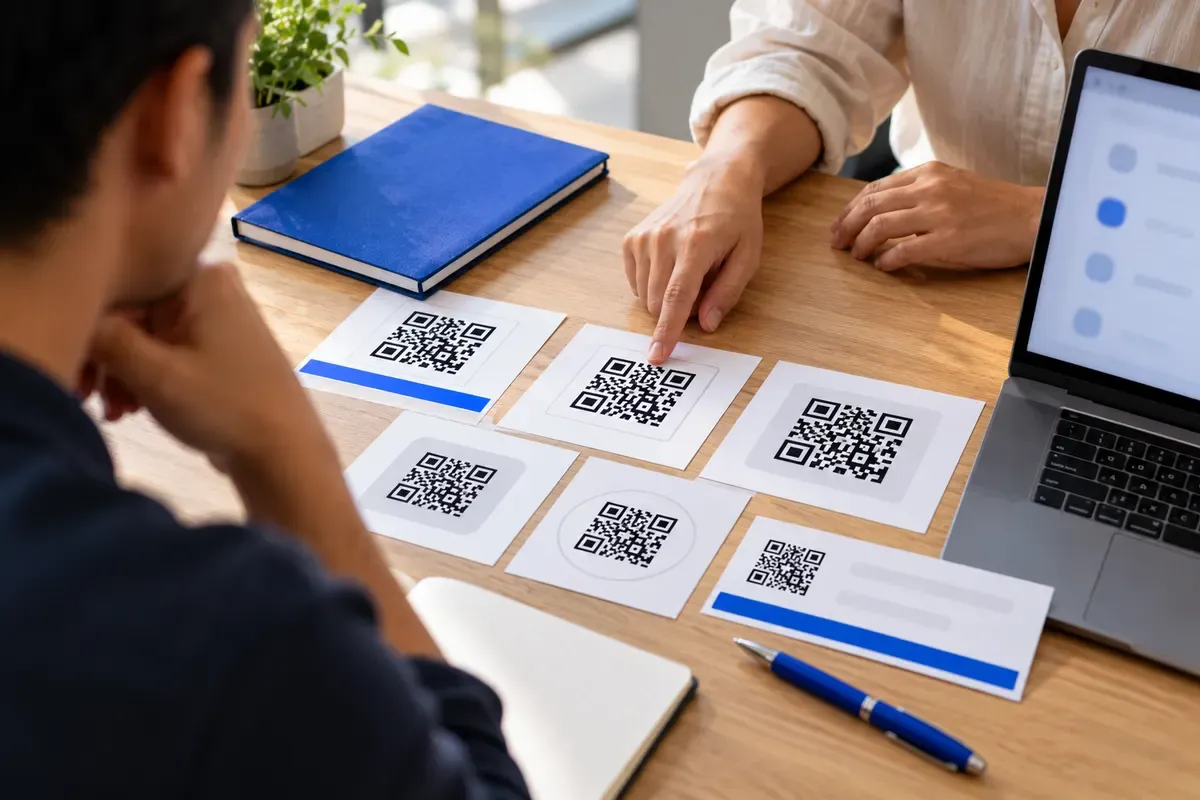
A dynamic QR code holds a short link. You can change where that link goes after the code is printed. That suits menus, event offers, property signs and packaging. A static code holds the address inside the pattern itself. It never expires, but you cannot change it or count its scans. Use a static code only when the address will stay fixed. Our guide to static vs dynamic QR codes explains the choice, and the URL QR code guide covers fixed website addresses.
Many agencies start with one account and a set of folders. The trouble shows up as the client list grows.
- A shared login lets every staff member open every client’s links.
- Results from different brands mix together, so each client report takes extra work.
- When someone leaves your team, the shared password has to change for everyone.
Separate workspaces solve this by giving each client its own space.
| Agency task | One shared account with folders | Separate client workspaces |
|---|---|---|
| Client access | A shared password can expose other clients’ data | Each client has its own space |
| Reports | Mixed results make client reports harder | Each client’s results stay together |
| Staff access | A shared login gives broad access | You choose a role for each person |
Think of a marketing agency that handles menus, online orders and Google Review links for one restaurant. Those links belong together, and they should stay apart from another brand’s event offers. The guides on restaurant menu QR codes and Google review QR codes show what those print jobs involve.

The client churn trap: stop hostage codes
A client may end its retainer while its menus, cartons or signs are still in use. If the code stops sending people to the right page, the print run is wasted.
Some providers tie printed codes to an active plan. Then the agency must keep paying, or accept that old print jobs stop working. Agencies call these hostage codes.
KeptLink’s rule is simple. Codes made on a paid plan keep redirecting after you cancel, unless a code is blocked for safety. A safety block applies to a link that looks like phishing or malware. It is not a billing rule.
| When the subscription ends | What happens to printed codes |
|---|---|
| Uniqode | Dynamic QR code redirection stops |
| Hovercode | Codes beyond the free plan’s 3 become inactive |
| KeptLink paid plan | Codes keep redirecting, unless blocked for safety |
Read the other side of this rule too. When you cancel, your workspaces become read-only. You can no longer edit destinations or create new codes until you subscribe again. Visits are still counted, and you see the full details again when you resubscribe. So set each campaign’s final destination before you end a plan. Our guide on whether QR codes expire helps you check any provider’s terms.
A packaging studio can use this rule when it plans work for beverage brands. The cartons may stay on shelves long after the design project ends. Before you send artwork to a printer, do three things:
- List where each code leads, such as a sourcing page, an ingredient certificate or a reorder page.
- Give the client a record of what its cartons and labels link to.
- Keep that record with the print files.
Client workspaces keep brands and data separate
A workspace is a separate area for one client’s work. Each client workspace has its own links and its own analytics. Business includes 25 workspaces, and your own top-level workspace counts as one of them. Pro includes 3 workspaces.
Here is how you set up a client:
- Open the Clients page in your top-level workspace.
- Enter the client’s name and select Add client.
- Optionally, enter a client contact’s email and choose Viewer or Editor access. KeptLink sends the invitation.
- Use the workspace switcher to move between clients. When you have more than six workspaces, a search box helps you find one.
The Clients page lists every client with its active links and its visits this month. It also marks the client with the most visits.
This setup fits many kinds of shops. A marketing agency can keep each restaurant’s menu, order and review campaigns in its own space. A real estate team can give each agent a space for listings. An event firm can use one space for each sponsor, with codes for registration pages, VIP check-ins and discount vouchers.
Access is set for each workspace. If you remove someone from your top-level workspace, they stay in any client workspace they joined. Remove them on each client’s Members page too.
Before you add a client, write a short work list:
- List the client’s QR codes and short links.
- Note which links may need to change after printing.
- Choose the client’s branded domain, if there is one.
- Name the staff and client contacts who need access.
- Decide what scan data belongs in the client’s reports.
Keep print checks in the same client brief. The QR code size guide helps when you prepare signs, menus or packaging.

- Harbor KitchenIts own links and visit dataClient access: Editor
- Sunset BakeryIts own links and visit dataClient access: Viewer
- Pine Street DentalIts own links and visit dataNo client access yet
Branded custom domains for client campaigns
A custom domain puts the client’s name in the link that people see after they scan. It looks like menu.clientbistro.com or links.brand.com instead of a shared address. Clients often prefer this on printed material.
Business includes 10 custom domains. Pro includes 1. Plan limits count across all your workspaces, so 10 domains do not cover 24 clients. Count the domains you need, not only the clients, when you pick a plan. Clients without a domain can use the shared KeptLink short link.
Setup takes a few steps, and the client usually has to take part, because the client controls the domain.
- Choose a subdomain, such as go.clientbrand.com. A root domain like clientbrand.com cannot be connected.
- Open the Domains page in the client’s workspace and add the subdomain.
- Add the two DNS records that KeptLink shows: a TXT record that proves ownership and a CNAME record that points to KeptLink.
- Select Verify. Most domains are ready within minutes.
Ask the client’s web contact to add the records, or ask for DNS access for the day. Our guide to a custom domain for QR codes has steps for 12 DNS providers. It also explains one risk: the DNS belongs to the client. If the record is removed or the domain expires, links on that domain stop working until it is restored.
Only Owners and Admins can manage domains. Editors and Viewers cannot.
KeptLink offers branded redirect links and separate client workspaces. It does not offer a white-label dashboard, so clients see the KeptLink app and not your own colors and logo.
Roles for your team and your clients
A role decides what a person can do. Plan roles before you invite anyone. This table comes from the permissions KeptLink checks on every request.
| Action | Owner | Admin | Editor | Viewer |
|---|---|---|---|---|
| See links and analytics | Yes | Yes | Yes | Yes |
| Create and edit links | Yes | Yes | Yes | No |
| Run bulk uploads | Yes | Yes | Yes | No |
| Manage domains and API keys | Yes | Yes | No | No |
| Invite and manage members | Yes | Yes | No | No |
| Add client workspaces | Yes | Yes | No | No |
| Manage billing | Yes | No | No | No |
A designer may need the Editor role to change campaigns. A brand contact may only need to read scan reports, so give that person the Viewer role. When you add a client, the invitation offers Viewer or Editor. Nobody can invite a person to a role above their own.
Keep the agency’s shared master password out of client handoffs. Give each person their own sign-in instead, so you can remove one person without touching anyone else.
Reports your clients can read
KeptLink keeps raw scan events for 90 days. Each event records the time, country, region, city, device, operating system, browser and referrer. The referrer is the page or app that sent the visit. Daily totals are kept forever.
Some limits are worth sharing with clients:
- A visit through a QR code is very likely a scan, but it is not proof. Someone could type or share the address.
- Locations are approximate. VPNs and mobile carriers can make them less exact.
- Unique visitors are counted per day and are approximate. A total over several days is shown as visitor-days.
- KeptLink does not store raw IP addresses.
On Pro and Business, you can download a CSV file of a link’s raw visits. A CSV is a table file that opens in a spreadsheet. Because raw events last 90 days, export the data for a sponsor or client before the window passes.
To tell campaigns apart, use the UTM builder. UTM tags are labels added to a link, such as source, medium and campaign, that tools like Google Analytics read. The builder also has presets for a printed flyer, a business card, a restaurant table, an email and a social post.
A change to a destination reaches scanners in about 1 to 2 minutes. A new or edited destination is checked for safety first, and the old destination keeps working while the check runs.
Bulk creation and the API for large jobs
Event badges, packaging runs and direct mail need many codes at once. Bulk creation makes them from a CSV file. Each row becomes a short link and a QR code. Only the destination column is required. KeptLink gives you a template file to start from. One file holds up to 500 rows, and you get back a results report, a links CSV and a ZIP of the QR codes.
Business includes 1,000 bulk rows per 24 hours. Rows that fail still count toward that limit. Owners, Admins and Editors can run bulk uploads. The page on bulk QR codes has more detail.
An API lets your own software send requests to a service. Business includes 5,000 API calls per 24 hours. An API key works for one workspace only, so a client workspace gets its own key. Owners and Admins manage keys. The API reference lists the requests you can make.
Comparing agency QR code platforms
Look at the limits that match your client work. Check the billing term next to each monthly price. Then check what happens to codes after you cancel.
| Platform and plan | Price | Limits listed | After you cancel |
|---|---|---|---|
| KeptLink Business | $69/month, or $55/month billed annually | 25 workspaces, 5,000 dynamic links, 10 custom domains, 10 seats | Codes keep redirecting, unless blocked for safety |
| Hovercode Business Plus | $99/month, or $82.50/month billed annually | 2,000 codes per month, 10 workspaces, 50 domains, 25 members | Codes beyond the free plan’s 3 become inactive |
| Uniqode Plus | $99/month | Multi-user access | Dynamic QR code redirection stops |
| QR Code Generator Pro Professional | $49.99/month billed annually | 250 codes, 5 seats, no dedicated agency workspace model | Codes deactivate 30 days after cancellation |
| QRCodeChimp Pro | $13.99/month billed annually | 300 codes, 150k scans, sub-accounts | All codes except the last 10 pause if the plan lapses |
We checked these prices on 2026-10-17 on each vendor’s pricing page, including Hovercode and Uniqode. Plans change, so check the vendor before you decide. QRCodeChimp Pro includes 150k scans. KeptLink includes unlimited scans on every plan, with a fair-use rule for abusive traffic.
KeptLink Business: plan limits for agencies
Pick a plan by counting client workspaces, links, domains and seats. Business costs $69 a month, or $55 a month billed annually ($660 a year).
| Business includes | Limit |
|---|---|
| Workspaces | 25, including your own |
| Dynamic links | 5,000 |
| Custom domains | 10 |
| Seats | 10 |
| Bulk rows | 1,000 per 24 hours |
| API calls | 5,000 per 24 hours |
| Raw scan history | 90 days |
Seats need a closer look. A seat is one person across your workspace and every client workspace. A pending invitation holds a seat too. If you invite client contacts as Viewers, they use seats. Count your staff and the client contacts together before you choose Business.
Pro costs $29 a month, or $24 a month billed annually ($288 a year). It includes 3 workspaces, 500 links, 3 seats, 1 custom domain and 100 bulk rows per 24 hours. Compare KeptLink pricing and plans with your client list.
You can try KeptLink free for 14 days with no card. The trial has one workspace, so the client workspaces open on a paid plan. The pricing page explains what happens when a trial ends.
If your old client print runs still cost you monthly fees elsewhere, that is the cost to compare. On a paid KeptLink plan, those printed codes keep redirecting after you cancel, unless a code is blocked for safety.
Frequently asked questions
How do client workspaces work in KeptLink?
Each client gets its own workspace under your top-level workspace, with its own links and analytics. You add a client from the Clients page and switch between clients with the workspace switcher. Business includes 25 workspaces, counting your own. Pro includes 3.
Can my clients log in and view their scan analytics?
Yes. Invite a client contact to their workspace as a Viewer. A Viewer can see links and analytics, but cannot create or edit links, manage domains or members, or open billing. A client sees only the workspace they were invited to.
What happens if a client ends their retainer?
Codes made on a paid plan keep redirecting after you cancel, unless a code is blocked for safety. If you cancel your own plan, your workspaces become read-only, so you cannot edit destinations or create new codes until you subscribe again.
Can each client have a branded custom domain?
Yes, as long as your plan has room. Business includes 10 custom domains and Pro includes 1. Each domain is a subdomain the client owns, such as go.clientbrand.com, connected with two DNS records.
Does KeptLink cap the scans a client campaign can get?
No. Every plan includes unlimited scans. A fair-use rule applies to abusive traffic.
Can my agency create hundreds of codes at once?
Yes. Business includes 1,000 bulk rows per 24 hours and 5,000 API calls per 24 hours. One CSV file holds up to 500 rows. Pro includes 100 bulk rows per 24 hours and no API access.
What roles can I give agency staff and clients?
There are four: Owner, Admin, Editor and Viewer. Editors create and edit links and run bulk uploads. Admins also manage members, domains, API keys and client workspaces. Only the Owner handles billing. Viewers are read-only.
How many people can I invite on Business?
Business includes 10 seats. A seat is one person across your workspace and all client workspaces, and a pending invitation holds a seat. Client contacts you invite use seats too.