Bulk from a CSV
Bulk Dynamic QR Codes from a CSV File
Turn a spreadsheet into hundreds of dynamic QR codes with short links you can edit after printing. See the CSV columns, the limits, and what you download.
Updated
In short
Bulk dynamic QR codes turn each row of a spreadsheet into a QR code with its own short link. With KeptLink Pro or Business, you upload a CSV of up to 500 rows, check it in your browser, and download the codes as PNG and SVG files in one ZIP.
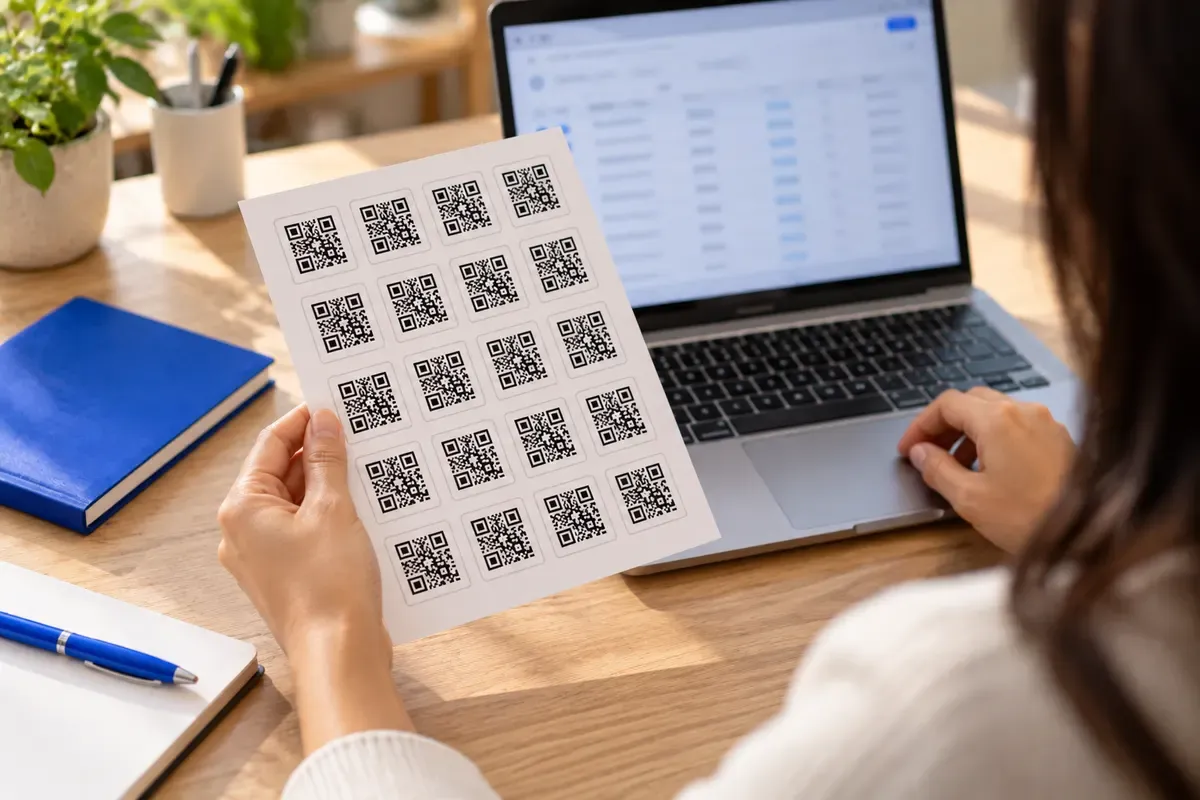
A product run, a conference or a school can need hundreds of QR codes at once. Making them one by one takes days and invites mistakes. A spreadsheet is a better start. You list the web addresses, upload the file, and get a code for every row.
This page explains how bulk upload works in KeptLink: what goes in the file, what the limits are, what you get back, and what happens to your printed codes later.
What bulk dynamic QR codes are
A dynamic QR code does not hold your final web address. It holds a short link. When someone scans the code, the short link sends them to your address. You can change that address later without touching the printed code.
In bulk, each row of your spreadsheet becomes one short link and one QR code. A CSV file is a spreadsheet saved as plain text, with commas between the columns. Excel and Google Sheets can both save to CSV.
Here is how this differs from a static batch.
| What matters | Static batch | Dynamic batch |
|---|---|---|
| Change the web address after printing | No | Yes |
| Scan analytics | No | Yes |
| Pattern on the label | Long addresses make a dense pattern | A short link keeps the pattern simple |
| Best for | Fixed links that never change | Packaging, signs, badges, asset tags |
Edits reach scanners in about 1 to 2 minutes, not at the same second. Plan for that if you change a link on the day of an event.
Not sure which type you need? Read static vs dynamic QR codes first. For more on how one code can be edited, see dynamic QR codes.
How bulk upload works
The steps are the same each time.
- Download the template. On the bulk upload page in the app, select “Download the template.” The file has the right column names and two sample rows.
- Fill in one row per link. Only the destination is required.
- Choose your file. KeptLink reads it in your browser. It tells you how many rows are ready and lists any row with a problem, with the line number and the reason. Rows with a problem are skipped.
- Create the links. The app sends your rows in groups of 50. A progress bar shows how far it has got.
- Download your results. You get a results report, a links.csv file, and a ZIP of QR codes.
Your file is checked in the browser first, so a typo does not cost you rows. Every link made this way goes through the same safety check as a link made by hand. KeptLink uses Google Web Risk to flag harmful destinations. Rows that fail that check are not created.
If the connection drops
Uploads can be interrupted. Your laptop sleeps, or the Wi-Fi in the hall fails. KeptLink is built for this.
When you start, the browser saves a reminder of the upload: an ID and a fingerprint of your file. It never saves the contents of your spreadsheet. If you reload the page, select the same file again. KeptLink skips the rows already done and sends only the rest. It makes no second link for a row and does not charge a row twice. An upload that stays open for 7 days is closed.
If you change the file between tries, KeptLink refuses the rows that differ. Choose the original file to continue.
- destination,title,tagshttps://…/menu?spot=1,Table 1,printYour CSV fileOne row per link, up to 500 rows per upload.
- 10 created · 0 failedYour linksEach row becomes a short link and a QR code.
- QR codes (ZIP): PNG and SVGlinks.csvYour downloadsEvery code and its short link, ready to print.
Format your CSV file
The first row names the columns. The names must match the template exactly. If the app sees a column it does not know, it stops and tells you which one. Capital letters in the header do not matter.
| Column | Required | What to put in it |
|---|---|---|
| destination | Yes | A full web address starting with https:// or http:// |
| title | No | A name you will recognize, up to 200 characters |
| tags | No | Up to 10 tags, separated by semicolons, each up to 32 characters |
| code | No | Your own short-link ending: 3 to 64 letters, numbers, hyphens or underscores |
| utm_source, utm_medium, utm_campaign, utm_term, utm_content | No | Campaign labels added to the destination, each up to 200 characters |
Leave the code empty and KeptLink picks a random one. Your own codes need a plan that includes them, and both Pro and Business do. Each code can appear only once in a file.
UTM labels are small tags added to a web address. They show which campaign sent a visit in tools such as Google Analytics.
Here is a sample file for a clothing brand with five hangtags. It uses the exact column names the app accepts.
destination,title,tags,code,utm_source,utm_medium,utm_campaign,utm_term,utm_content
https://example.com/manuals/trail-jacket,Trail jacket manual,hangtag;outerwear,jacket-001,qr,hangtag,fall-line,,
https://example.com/manuals/rain-shell,Rain shell manual,hangtag;outerwear,shell-001,qr,hangtag,fall-line,,
https://example.com/sizing/women,Women's sizing guide,hangtag;sizing,sizing-w,qr,hangtag,fall-line,,
https://example.com/sizing/men,Men's sizing guide,hangtag;sizing,sizing-m,qr,hangtag,fall-line,,
https://example.com/warranty,Warranty registration,warranty,,qr,warranty-card,fall-line,,
The last row has no code, so KeptLink gives it a random one. Replace example.com with your own address before you upload.
A few habits save time:
- Keep the title and the tag next to the address. A clear title helps you find the row in links.csv later.
- Use the code column to match short links to something you already track, such as an asset number or a product line.
- Check every address in a browser first. A code that opens the wrong page is easy to print and costly to fix.
Where bulk fits: four examples
The sizes below are examples, not rules. Check the QR code size guide before you send any batch to a printer.
| Use | Batch | Code size | What scanners see |
|---|---|---|---|
| Product hangtags | 2,500 hangtags and warranty cards across 50 product lines, on matte recycled cardstock | 1.25 by 1.25 inches | Manuals, sizing guides, warranty pages |
| Conference badges | 400 laminated badges with lanyards | 1.5 by 1.5 inches | Guest profiles, agendas, contact cards |
| Property signs | 120 corrugated plastic sign riders across 3 counties | 4 by 4 inches | Listings, video tours, open house times |
| School equipment | 450 classroom devices with anodized aluminum asset tags | 0.85 by 0.85 inches | A support ticket form for that device |
On the hangtags, only 50 product lines need their own address. If next season’s warranty page moves, you change the link once and the printed tags still work. For the badges, keep each guest’s profile link in the same row as their name. For the school tags, set the code column to the asset number.
When the sign riders are done with a listing, you can point the same sign at the next property. You keep the hardware and change only the link.
What you download
When the upload finishes, the page shows how many rows were created, how many failed, and how many were skipped. You can download two things.
links.csv. One line for every row of your file, in file order. The columns are line, destination, title, short_url, qr_url, status and reason. Status is created, failed, skipped or not finished. A failed or skipped row has the reason in plain words. Keep this file. It is your map from each row to its short link.
A ZIP of QR codes. The ZIP holds:
- a png folder with one PNG for each created link, 1024 pixels wide
- an svg folder with one SVG for each created link
- a copy of links.csv
Each file is named by its line in your spreadsheet and its code, for example line-002-jacket-001. The header is line 1, so your first data row is line 2. That makes it easy to match a file to a row.
The codes are plain black on white squares, which are the easiest to scan. If you want a styled code, you can restyle a single link on its own page. SVG stays sharp at any size, so it suits large prints. PNG suits a quick layout. Our guide on SVG vs PNG vs PDF explains when to pick each. The ZIP does not include PDF files.
The ZIP is built in your browser, after the links exist. New links start working within about a minute or two.

Limits, plans and who can upload
Bulk upload is on Pro and Business. Other plans do not include it.
| Pro | Business | |
|---|---|---|
| Price | $29 a month, or $288 a year | $69 a month, or $660 a year |
| Dynamic links in total | 500 | 5,000 |
| Bulk rows in a rolling 24 hours | 100 | 1,000 |
| Custom domains | 1 | 10 |
| Workspaces | 3 | 25 |
| API calls in 24 hours | None | 5,000 |
You can see all plans at pricing.
Three limits work together.
- The file limit. One file takes up to 500 rows.
- The 24-hour limit. This is your plan’s bulk rows in any rolling 24 hours. A Pro file therefore holds at most 100 rows. A Business file can hold 500, and two full files fit in a day. If a file is too big for your plan, KeptLink asks you to split it.
- The link limit. Every created row is one of your dynamic links, so your plan’s total still applies.
The rows count the moment the upload starts, including rows that later fail. A retry of the same upload costs nothing more. Skipped rows never count. After 24 hours, rows used earlier free up again.
New accounts must wait. Bulk upload opens 7 days after an account is created. This is an anti-abuse rule.
Owners, admins and editors can upload. Viewers cannot. Each upload goes into one workspace, which helps when you run batches for several clients. Read about team workspaces and the agency page for that setup. If you would rather create links from code, see the API.
Your printed codes after you cancel
Some QR tools turn off your codes when you stop paying. Then the labels stay on the boxes, but they lead nowhere. With a big batch, that means new labels, new signs or a new print run.
KeptLink works differently. Codes made on a paid plan keep sending people to their last destination after you cancel. The only exceptions are codes blocked for safety or under our Acceptable Use Policy, and a workspace suspended after a chargeback. You can read the full promise on our continuity page. Our guide on whether QR codes expire explains the idea in more detail.
Two limits are worth knowing. After you cancel, you cannot edit the links until you have an active plan again. And the promise covers codes made on a paid plan, so check the plan before you print a large batch.
You can also put a code on your own domain, such as go.yourbrand.com, on Pro or Business. See custom domains and the custom domain setup guide.
Scan analytics for the whole batch
Every code in the batch counts its own visits. A visit to a QR address is very likely a scan, but it is not proof that someone scanned a code. Places are approximate, and unique visitors are approximate and counted per day. KeptLink does not store raw IP addresses.
The title, tags and UTM columns make the numbers easier to read. Tag every hangtag “hangtag” and you can filter to just those. Give each campaign its own utm_campaign and you can compare them in your analytics tool. Learn more about scan tracking.
Before you print a batch
Run through this list.
- Open five or six links from links.csv and check that each goes where you expect.
- Scan a printed sample of the real label, on the real material, at the real size.
- Confirm the codes match the right products, people or devices.
- Keep your links.csv somewhere safe, with your original spreadsheet.
- Allow a minute or two after creating or editing links before you test them.
Ready to try it? Pick a plan at pricing, then open the bulk upload page and download the template.
Frequently asked questions
What is the difference between static and dynamic bulk QR codes?
A static code holds the final web address, so you cannot change it after printing, and it cannot count scans. A dynamic code holds a short link that sends people to your address. You can change that address later and see scan analytics.
Which columns does the CSV need?
Only destination is required. It must start with https:// or http://. The other columns are optional: title, tags (separated by semicolons), code (your own short-link ending), and utm_source, utm_medium, utm_campaign, utm_term and utm_content. The template in the app has all of them.
How many QR codes can I make at once?
One file takes up to 500 rows. Your plan also sets how many rows you can use in a rolling 24 hours: 100 on Pro and 1,000 on Business. A file cannot be larger than your plan's 24-hour limit.
What happens if my connection drops during an upload?
Select the same file again. KeptLink sends only the rows that are not finished, makes no duplicate links, and does not charge those rows twice.
Does a bad row in my file use up my rows?
Rows with a problem the browser can see, such as a missing or broken web address, are skipped before the upload and are not counted. Rows that pass the browser check but fail on the server, for example because a code is already taken, still count.
What happens to my printed codes if I cancel?
Codes made on a paid plan keep sending people to their last destination after you cancel. The exceptions are codes blocked for safety or under the Acceptable Use Policy. You need an active plan to edit them.
What is in the ZIP file?
A png folder with a 1024-pixel PNG for each code, an svg folder with an SVG for each code, and links.csv, which lists every row with its short link and result. There are no PDF files in the ZIP.